
How to Set Stop Loss and Take Profit Automatically in MT5
MetaTrader 5 has no setting that adds a stop loss and take profit to your trades by itself. There are three ways to get them: type the levels into the order window for every trade, add them to the trade by hand after it opens, or run an Expert Advisor that adds the missing levels to every trade it sees.
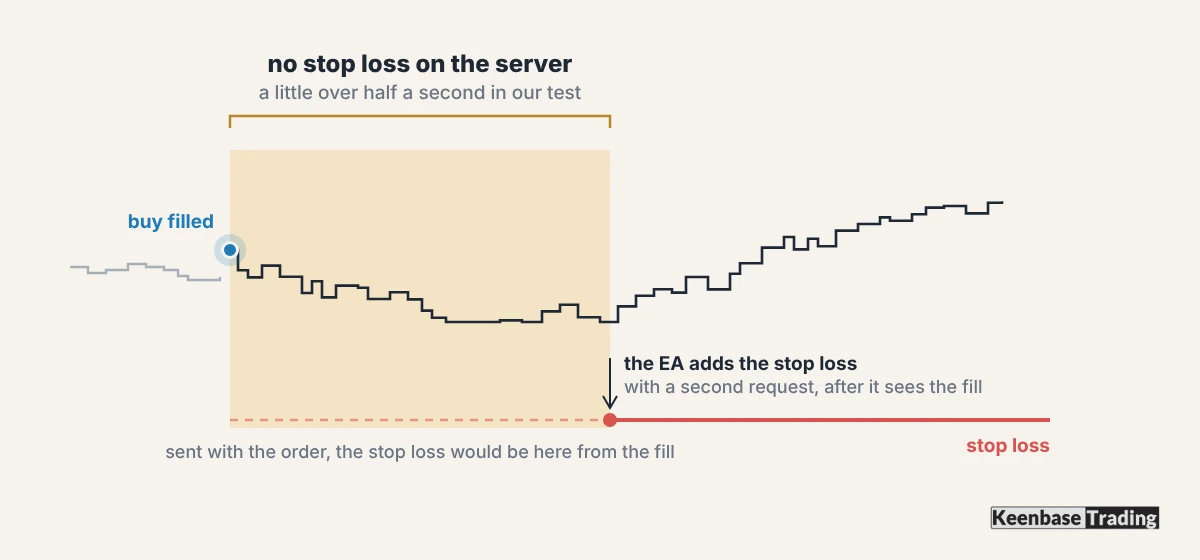
The question that decides between them is simple: must the stop loss exist from the first moment the trade is open? Only a stop typed into the order window, or attached to a pending order, does that. An EA adds the stop a moment after the trade opens, and on our test connection that moment was a little over half a second.
| Route | When the stop loss reaches the broker | What it cannot do |
|---|---|---|
| Order window | Together with the order | Remember the levels for the next trade |
| One-click trade, then add by hand | After the trade opens | Protect the trade until you add it |
| Expert Advisor | Shortly after the trade opens | Close the gap between the fill and the stop |
| Pending order with levels | Before the order fills | Help with trades you enter at market |
The MT5 Setting That Looks Like a Default Stop Loss, but Is Not
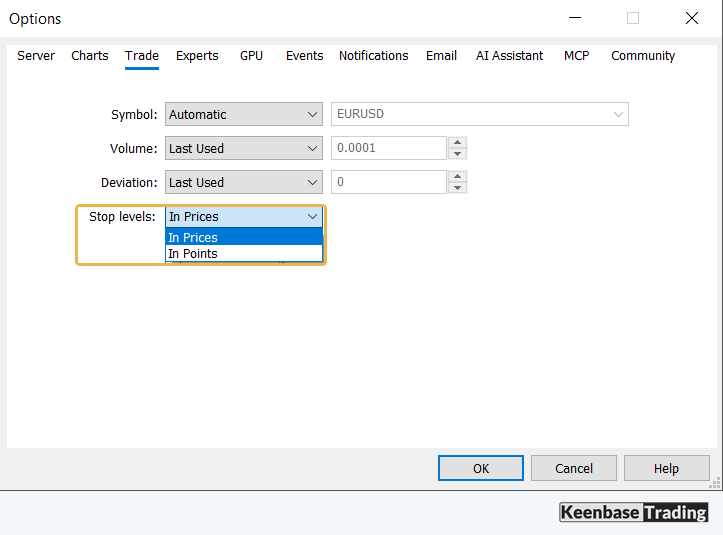
The obvious place to look is Tools > Options > Trade, because that tab has a line called Stop levels. That option only chooses how you type the levels: In Prices or In Points. It holds no value, and it adds nothing to your trades.
Choosing In Points still helps. In the order window you then type a distance, such as 200, instead of working out a price. It is faster, but you still type it on every trade, and a trade where you forget it opens with no stop loss.
One-click trading is the bigger gap. The quick trading panel on the chart sends a market order with a volume and nothing else, so a one-click trade opens with no stop loss and no take profit. You can add them afterwards by dragging the trade line on the chart, which is a manual step again.
Attached to the Order or Added Afterwards
A stop loss typed into the order window travels with the order. The broker opens the position with its stop already in place, so there is no moment when the trade is unprotected.
An EA that manages your manual trades cannot do that. It does not see the trade until the broker has filled it. Only then can it send a second request that adds the stop loss and take profit. Until that second request reaches the broker, the position has no stop on the server.
We measured that gap on an IC Markets MT5 demo account, on EURUSD with 0.01 lot. Ten trades opened with the stop loss attached all had their stop from the start. Ten more trades opened without a stop and were then changed to add one.
Each of those changes took between 587 and 922 milliseconds to come back from the broker, and half of them took less than about 594 milliseconds. So on that connection, a stop loss added after the fill arrived a little over half a second after the trade opened, before counting the time the EA needs to notice the trade.
The connection had a ping of about a third of a second. A terminal running on a VPS close to the broker’s server can shorten the connection part of that gap. That follows from the shorter distance; it was not measured here, and the two separate requests remain either way.
A gap of less than a second rarely matters for an ordinary trade. It can matter for a prop firm rule. If your firm says the stop loss must exist from the moment the position opens, only a stop attached to the order meets that rule. Read the exact wording of your firm’s current rule before you rely on an EA for it.
Pending orders avoid the gap: an EA set to manage pending orders adds the stop loss and take profit to the pending order itself, before it fills.
In MT5, a position opened by a pending order takes over the order’s stop loss and take profit, so the position starts with its stop already on the server.
Automatic Stop Loss EA for MT5: What KT Auto SL TP EA Does
The third route needs an Expert Advisor that watches your trades and fills in the levels they are missing. Keenbase makes an EA for this job.
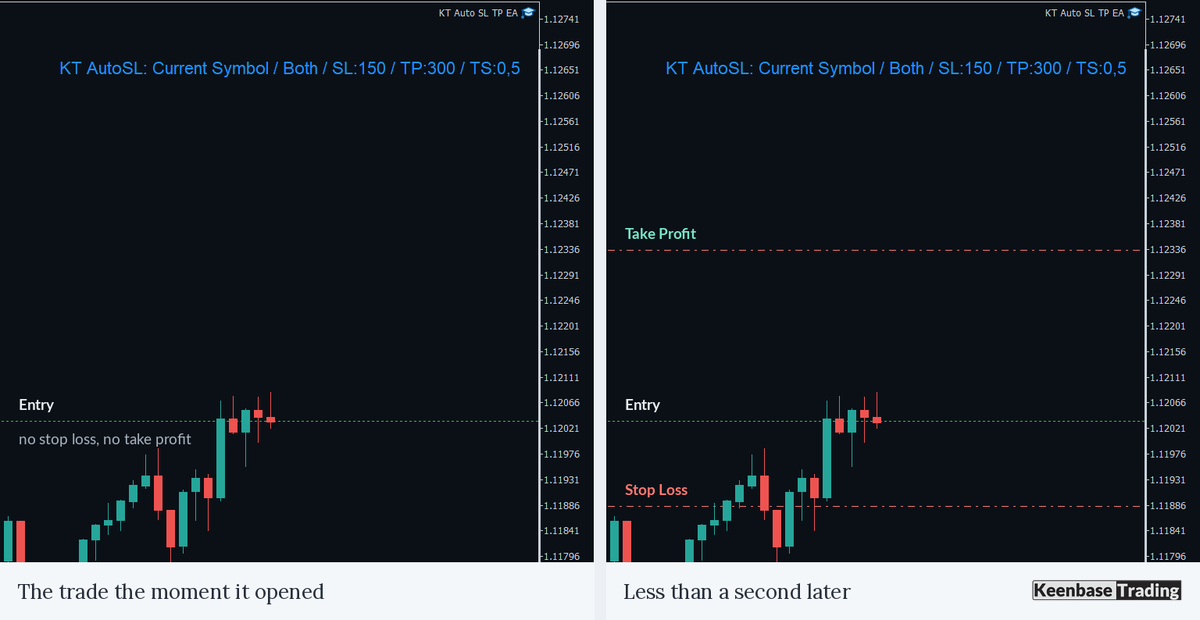
KT Auto SL TP EA runs on one chart in the desktop terminal. You set the stop loss and the take profit as distances in points, and a value of 0 leaves that level off. This is what the EA does, in the order it happens.
How often it looks: it checks your trades about seven times a second, and again on every price tick, while Algo Trading is switched on. With Algo Trading off it does nothing.
How long it takes: in our demo test, the stop loss and take profit appeared on the trade between 587 and 753 milliseconds after the broker confirmed it, over ten trades. Most of that time is the trip to the broker and back.
Which trades it takes: it has no magic number filter. A trade opened by hand on the desktop, from the mobile app, from the web terminal or by another EA is managed in the same way, as long as it matches the Symbol and Type settings.
Where it puts the levels: the distance is measured from the trade’s open price. For a buy the stop loss goes below and the take profit above; for a sell the reverse. If the broker’s minimum stop distance is larger than your value, the broker’s minimum is used instead.
What it leaves alone: it only fills in a level that is missing. If you move a stop loss by hand, the EA does not move it back. If you delete the stop, the EA adds it again at its next check.
One exception to that: when it fills in a missing level, it also resets the other level if that level sits at a different distance. A trade with a hand-placed take profit and no stop loss gets both the configured stop and the configured target.
When it resets every trade: on the first price tick after you attach the EA, restart the terminal or change its settings, it moves every matching trade to your configured distances, including levels you placed by hand. With break-even switched on, a stop loss already at break-even or beyond is left where it is.
Setting it up takes five steps:
- Attach KT Auto SL TP EA to one chart and switch on Algo Trading in the toolbar.
- Choose Symbol: Current Symbol for the chart’s symbol only, or All Symbols for every symbol in the terminal.
- Choose Type: Positions, Pending Orders or Both.
- Enter the stop loss and take profit in points, and leave Break-Even Trigger Points and Trailing Points at 0 for now.
- Open one small trade on a demo account and check where the levels land before you trade live.
Changing the Stop Loss on All Open Trades at Once
The reset rule makes this one action: open the EA’s settings, enter the new values and press OK. On the next price tick every matching trade is moved to the new distances, each measured from its own open price.
The same rule is the thing to watch. Any stop or target you placed by hand on a matching trade is overwritten at that moment. Because the EA has no magic number filter, it cannot leave out one single trade. With Current Symbol, only trades on a different symbol from the EA’s chart are left alone.
Points, Not Pips: Why One Value Does Not Fit Every Symbol
KT Auto SL TP EA takes every distance in points. A point is the value of the last digit in the symbol’s price, for example 0.00001 on a five-digit EURUSD quote. The size of a point changes from symbol to symbol, so the same number means a very different distance.
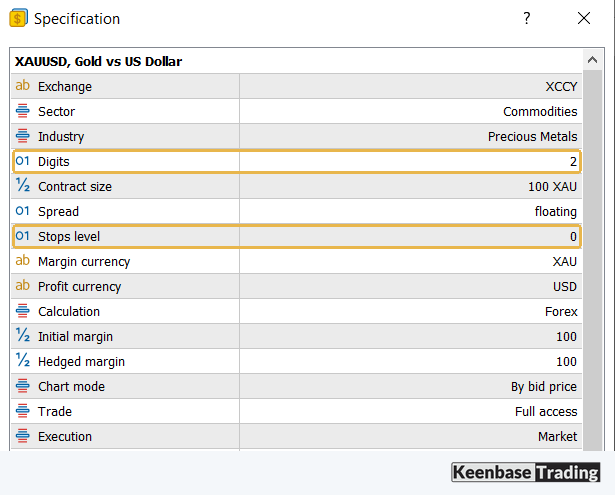
These are the point sizes on the account we tested. Your broker can quote a symbol with a different number of digits, so check Market Watch > Specification for your own.
| Symbol | One point | 200 points equals |
|---|---|---|
| EURUSD | 0.00001 | 0.00200, which is 20 pips |
| USDJPY | 0.001 | 0.200, which is 20 pips |
| XAUUSD (gold) | 0.01 | 2.00 in the gold price |
| US30 | 0.01 | 2.00 index points |
A stop loss of 200 points is an ordinary stop on EURUSD and a very tight one on gold, where the spread alone was 40 points when we checked. Run one EA with All Symbols across forex and gold, and one value is applied to both, so the gold stop can be hit almost at once.
When your symbols move on different scales, use Current Symbol and attach one copy of the EA to one chart per symbol, each with its own values. The gold trading guide covers how gold moves compared with forex pairs.
Why MT5 Says “Invalid Stops”
A broker can set a minimum distance between the current price and any stop loss or take profit. This minimum is called the stop level, and it is measured from the current price. KT Auto SL TP EA measures its own distance from the open price. Usually the two give the same answer.
The two give different answers when price has already moved a long way toward your stop before the EA acts. The stop worked out from the open price can then sit too close to the current price, or even on the wrong side of it, and the broker rejects the change with the message “invalid stops”.
One way this happens is a trade opened from the phone while the desktop terminal is off. The EA only sees that trade when the terminal starts again, and by then price may have moved a long way.
We reproduced the message on the demo account. A stop loss above the current bid on a buy was rejected as invalid stops, and a stop 50 points below the bid was accepted. The EA simply tries again at its next check, a fraction of a second later.
So an “invalid stops” line in the Experts tab, followed by a stop on the trade, means one attempt was refused and a later one went through. It does not mean the EA has stopped working.
On that account the stop level was 0 points on all 11 symbols we checked: four forex pairs, gold, silver, four stock indices and Bitcoin. Other brokers and account types set a minimum above zero. Your own figure is in Market Watch > Specification, on the Stops level line.
Trailing Stop and Break-Even: What the EA Does and What MT5 Does
MT5 has its own trailing stop: right-click an open position and choose Trailing Stop. It starts only once the trade’s profit reaches the distance you chose. It runs inside your terminal, not on the broker’s server, so it stops moving the stop when the platform is closed.
The trailing stop in KT Auto SL TP EA is also run by your terminal. The stop it has already set stays on the server, but it does not move again until the terminal is back. When it starts depends on whether break-even is switched on.
At every check, for a buy, the EA compares the ask price with the current stop. When the ask is more than Trailing Points plus Trailing Step Points above the stop, the stop moves up to Trailing Points below the ask. A sell works the same way with the bid, mirrored. The stop never moves backwards.
A trailing distance smaller than the stop loss: with break-even switched off, the trailing stop has no profit level at which it starts, so the trailing distance becomes your real starting stop.
Take a buy with a 200-point stop loss, 100 Trailing Points and 10 Trailing Step Points. The ask starts 200 points above the stop, more than the 110 points (100 plus 10) needed, so at the first check the stop moves up to 100 points below the ask.
Watch that once on a demo trade before you rely on it. If you want to keep your full stop loss until the trade is in profit, switch on break-even, described below. The other way is to set Trailing Points at least as large as the stop loss, so the stop stays where it is until price moves your way.
Keep Trailing Points well above the symbol’s normal spread. For a buy the EA measures the trailing stop from the ask, but the trade closes at the bid, so the real gap between the stop and the closing price is the trailing distance minus the spread. A sell works the same way, mirrored.
Break-even has two settings of its own. Break-Even Trigger Points is the profit, in points, at which the EA moves the stop loss to the trade’s open price. Break-Even Offset Points places the stop that many points beyond the open price, so a trade closed at break-even still keeps a few points, for example to cover the commission.
The EA measures that profit at the price the trade would close at: the bid for a buy and the ask for a sell. Once the stop loss is at break-even, the EA never moves it back, not even when it fills in a missing take profit or resets every trade after a restart.
With break-even switched on, the trailing stop waits for it. Your full stop loss stays in place until the trade reaches the trigger. Then the stop moves to break-even and trails from there.
We tested this on gold on our demo account, with a 300-point stop loss, a 100-point trigger, a 10-point offset and 50 Trailing Points. In two runs, each winning trade kept its full 300-point stop until its profit passed 100 points. The stop then moved to 10 points beyond the open price and trailed from there.
One buy closed with 234 points locked in by the trailing stop, and one sell with 149. The trades that never reached the trigger kept their full 300-point stop the whole time.
Stop Loss and Take Profit on the MT5 Mobile App
The MetaTrader 5 apps for Android and iPhone cannot run Expert Advisors, so there is no automatic stop loss on the phone itself. On the phone you type the stop loss and take profit into the order screen, trade by trade.
What does work is the desktop terminal, or a VPS running it, with the EA attached. Trades you open from the phone are on the same account, so the EA sees them and adds the levels. That only works while that terminal is running, connected and has Algo Trading switched on.
The gap from earlier applies to phone trades too: the trade opens first, and the stop loss follows a moment later. If a rule needs the stop at entry, type it into the phone’s order screen before you send the trade, or use a pending order that carries its own stop.
Auto SL TP on MT4
The routes are the same on MetaTrader 4: type the levels into the order window, add them by hand afterwards, or run an EA. KT Auto SL TP EA uses the same stop loss, take profit, break-even and trailing logic in its MT4 and MT5 versions.
On MT4 the switch the EA needs is called AutoTrading instead of Algo Trading, and the EA file goes in the MQL4 > Experts folder of the terminal’s data folder.
Which Route Fits Your Trading
If a rule requires the stop loss at entry: type it into the order window or use pending orders with their levels, and keep an EA only as a safety net for the trade where you forget.
If the risk is a trade left with no stop at all: for trades opened by hand, with one-click buttons or from the phone, an EA on the desktop or a VPS adds the levels in less than a second on a connection like the one we tested.
If you trade symbols on different price scales: give each symbol its own chart, its own copy of the EA and its own values in points. For the wider picture of managing a trade after entry, see what trade management covers.
KT Auto SL TP EA adds your stop loss and take profit to every matching trade from one chart on MT4 and MT5, including trades you open on the phone, and can move the stop to break-even and trail it for you.
See KT Auto SL TP EA for MT4 and MT5
About this article
Published by Keenbase Trading, which has been trading since 2018 and builds MT4 and MT5 indicators, Expert Advisors, free trading tools and custom MetaTrader development.
Broker conditions and platform behaviour can change, so confirm the stop level, point size and timing on your own account before you rely on them.