
How to Install an Indicator or Expert Advisor (EA) in MT4 and MT5
Installing an indicator or an Expert Advisor (EA) in MetaTrader 4 (MT4) or MetaTrader 5 (MT5) comes down to three actions. You copy the file into the right folder inside MetaTrader, refresh the Navigator window, and drag the file onto a chart. It takes about five minutes.
The steps are the same for any indicator or EA you download. MT4 and MT5 differ only in a few folder names and setting names, so every step gives both names. The pictures show MT5.
Before you start: four checks
- Use MetaTrader on a computer: Custom indicators and EAs run in the MetaTrader terminal on a Windows or Mac computer, or on a virtual private server (VPS). The MetaTrader apps for Android, iPhone and iPad cannot load them.
- Match the file to your platform: An MT4 file ends in
.ex4and runs only in MT4. An MT5 file ends in.ex5and runs only in MT5. An.ex4file copied into MT5 never appears there. - Unzip the download: If the file came as a zip file, right click it, choose Extract All, and use the file inside. MetaTrader cannot read a zip file.
- Know which type you have: An indicator draws on the chart and never places trades. An EA can open and close trades by itself. Copying an indicator into the Experts folder does not make it trade.
Windows sometimes shows an .ex4 or .ex5 file with the icon of another program, such as a PDF reader. The file is still correct. You never open it by double clicking it. You only copy it into a MetaTrader folder.
Step 1: Open the data folder
In MetaTrader, open the File menu and click Open Data Folder. A Windows folder opens.
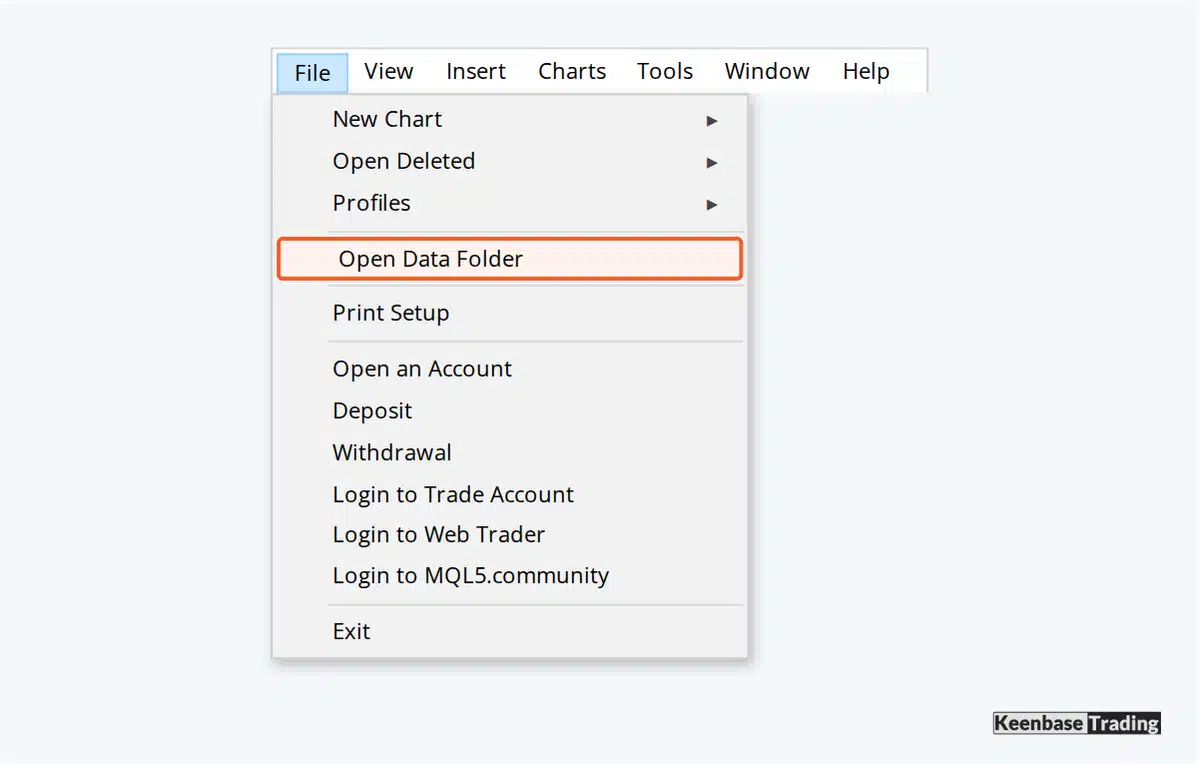
Use this menu rather than the folder where MetaTrader is installed. On Windows, MetaTrader keeps its indicators and EAs in a separate data folder under your user account, at a path like C:\Users\Your Name\AppData\Roaming\MetaQuotes\Terminal\ followed by a long code.
Every MetaTrader you install has its own data folder. If you use two terminals, for example from two brokers, open the data folder from the terminal you want to use. To have the indicator or EA in the other terminal as well, repeat the steps there.
Step 2: Copy the file into the right folder
In the data folder, double click MQL4 in MT4 or MQL5 in MT5. Then copy the file into the folder that matches its type:
| What you are installing | Folder in MT4 | Folder in MT5 |
|---|---|---|
| Indicator | MQL4\Indicators |
MQL5\Indicators |
| Expert Advisor (EA) | MQL4\Experts |
MQL5\Experts |
| Script | MQL4\Scripts |
MQL5\Scripts |
| Library file, only when a product asks for one | MQL4\Libraries |
MQL5\Libraries |
| Settings file ending in .set | MQL4\Presets |
MQL5\Presets |
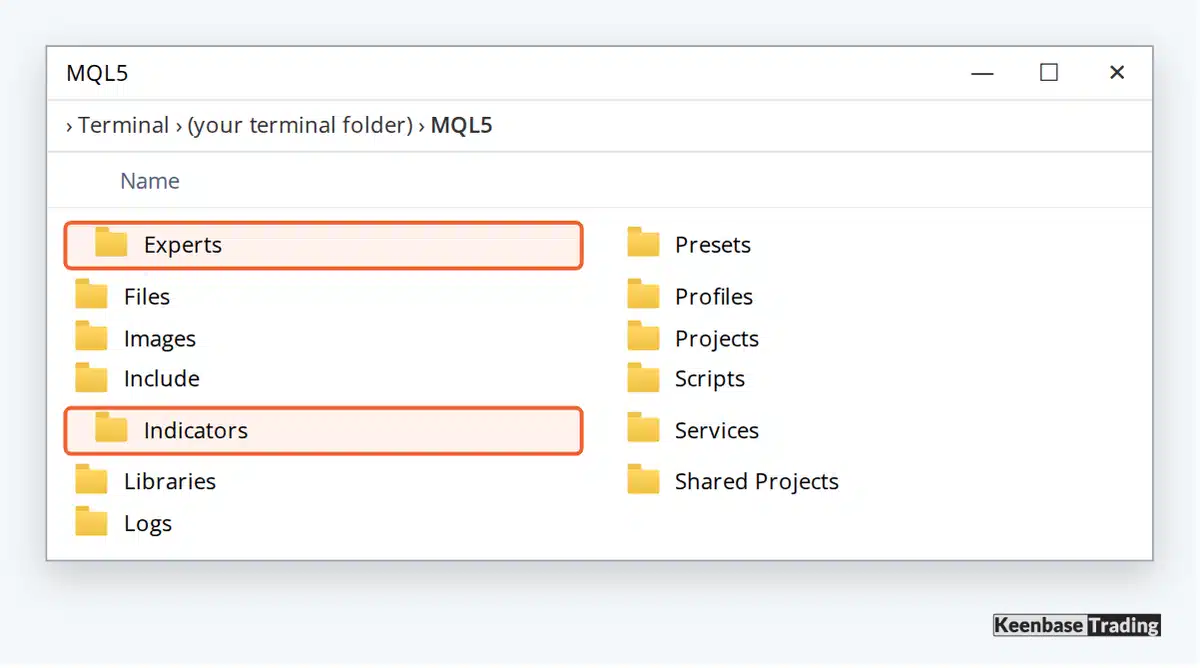
You can also create your own folder inside Indicators or Experts and copy the file there. MetaTrader shows it as a folder in the Navigator, which keeps a long list tidy.
Step 3: Refresh the Navigator
Go back to MetaTrader and open the Navigator window with Ctrl+N if it is not already open. Right click Indicators, or Expert Advisors for an EA, and click Refresh. The new file now appears in the list.
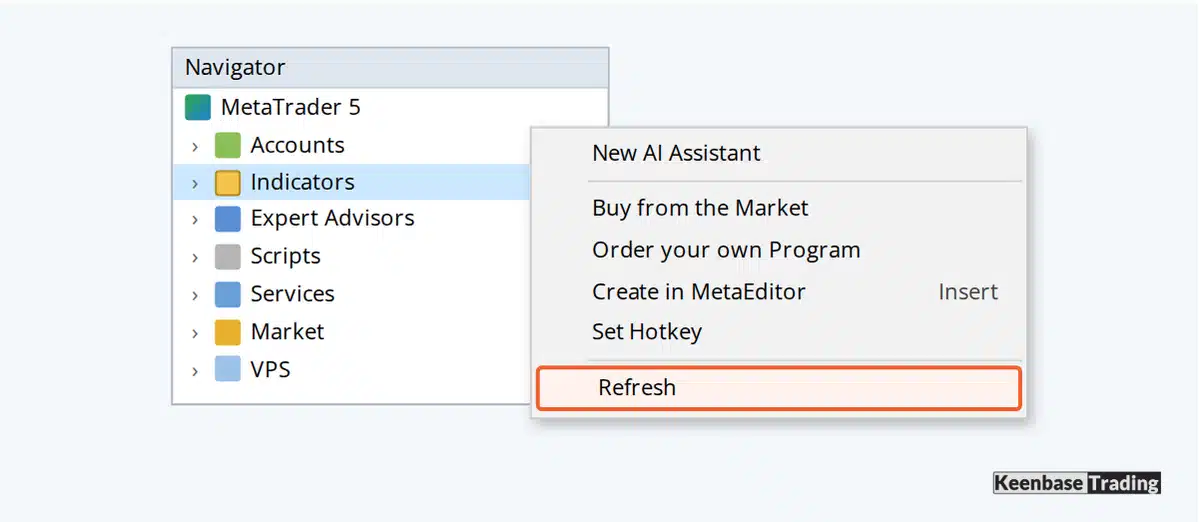
If the file still does not appear, close MetaTrader and open it again. MetaTrader reads all its folders when it starts.
Step 4: Attach it to a chart
Open a chart, then drag the indicator or EA from the Navigator onto the chart, or double click it in the Navigator. A settings window opens. Its Inputs tab holds the product’s own settings. Change them now or keep the defaults, and click OK.
If the product needs a licence key, paste the key into the licence key line on the Inputs tab before you click OK.
When the product needs DLL imports
Some products use a Windows file called a DLL, for example to check a licence key over the internet. MetaTrader blocks DLL use until you allow it. In the settings window, open the Dependencies tab in MT5, or the Common tab in MT4, and tick Allow DLL imports.
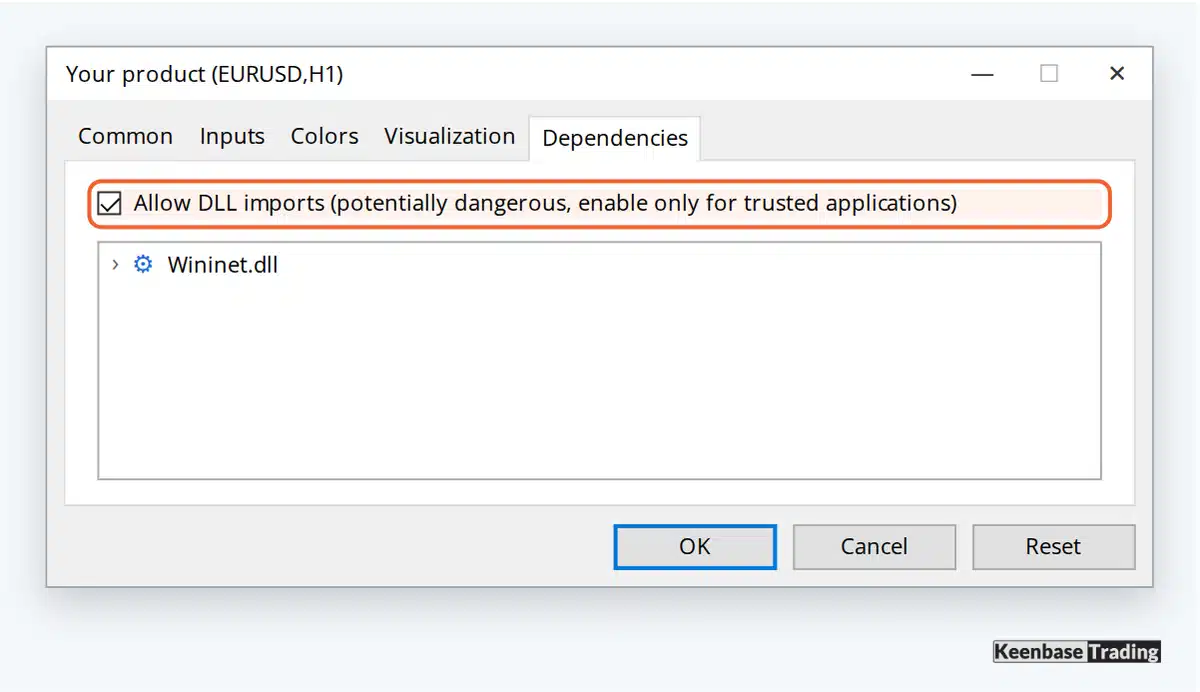
To allow DLL imports for every indicator and EA you attach from now on, open Tools, Options, then the Experts tab in MT5, or the Expert Advisors tab in MT4, and tick Allow DLL imports. A product that is already on a chart keeps its old setting, so remove it from the chart and attach it again.
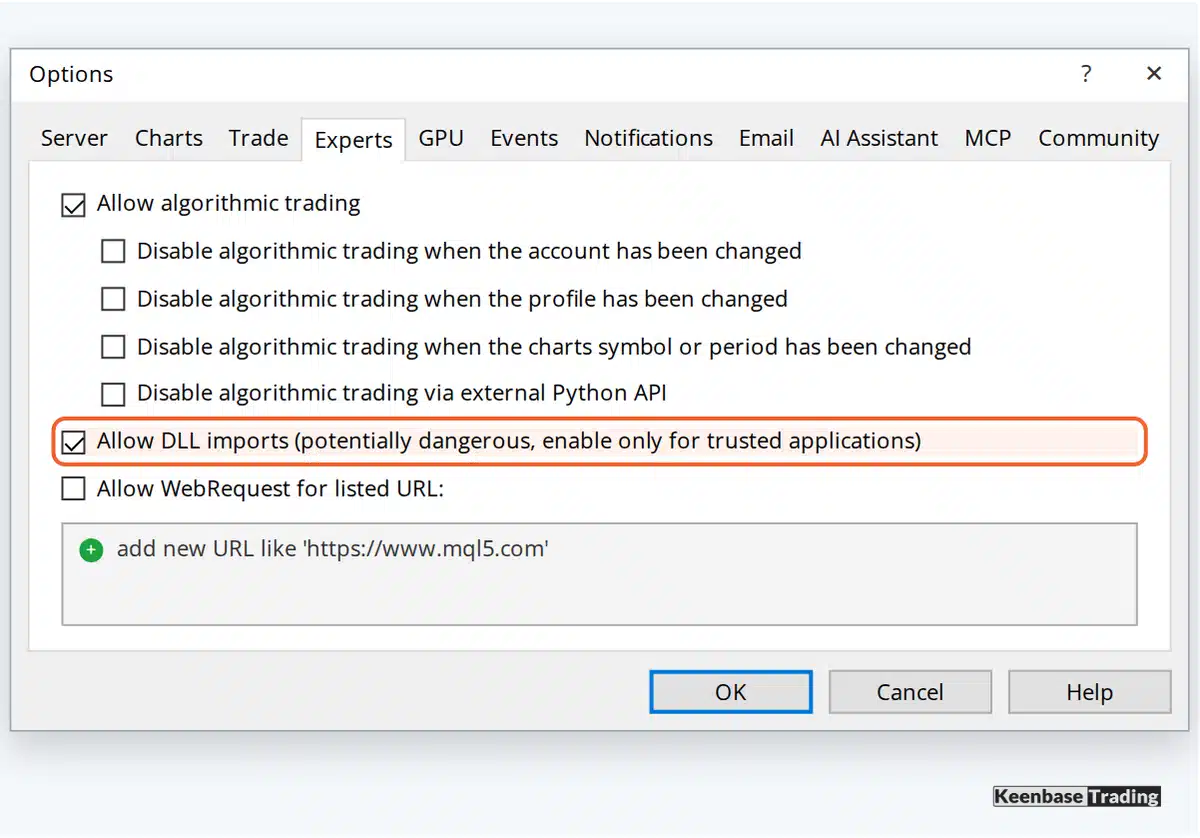
MetaTrader labels this setting “potentially dangerous, enable only for trusted applications”, and the warning is fair: a DLL can do anything a normal Windows program can do. Allow DLL imports only for indicators and EAs from a seller you trust.
Step 5, EA only: Switch on Algo Trading
An indicator is ready after step 4. An EA places trades only when two switches are on.
The first switch is the Algo Trading button on the MT5 toolbar, called AutoTrading in MT4. Click it once so that its icon turns green.

The second switch is in the EA’s settings window: tick Allow Algo Trading on the Common tab in MT5, or Allow live trading on the Common tab in MT4.
When the EA is running, its name appears in the upper right corner of the chart. An EA that is running but has not traded yet may simply be waiting for its entry conditions.
If the indicator or EA does not work
| What you see | What to do |
|---|---|
| The file is not in the Navigator | Check that the file went into the MQL5 folder for MT5 or the MQL4 folder for MT4. Check that it is in Indicators or Experts to match its type, and in the data folder of the terminal you are using. Check that it is not still inside a zip file. Then refresh the Navigator or restart MetaTrader. |
| A message says DLL imports are not allowed | Tick Allow DLL imports as shown in step 4, then remove the product from the chart and attach it again. |
| The product is on the chart but nothing appears | Press Ctrl+T to open the Toolbox window in MT5, or the Terminal window in MT4, and read the Experts tab. MetaTrader writes the reason there, for example a missing file or a setting that is switched off. |
| The EA is on the chart but never trades | Check both switches in step 5. If both are on, the EA may be waiting for its entry conditions. |
| The file will not load on a phone or tablet | The MetaTrader mobile apps cannot run custom indicators or EAs. Use MetaTrader on a computer or a VPS. |
| You bought the product on the MQL5 Market | Products from the MQL5 Market install from the Market tab inside MetaTrader, so there is no file to copy. |
About this article
Published by Keenbase Trading, which has been trading since 2018 and builds MT4 and MT5 indicators, Expert Advisors, free trading tools and custom MetaTrader development.
Menu and setting names can change between MetaTrader builds. If a name on your screen differs, follow the name on your screen.