
How to Clear MT4 and MT5 History Cache & Why is it Important?
MetaTrader uses the word “history” for two completely different things, and almost every guide to clearing your cache blurs them together.
One is price history: the downloaded bars and ticks sitting on your own hard disk, along with the chart profiles, tester files and logs that accumulate beside them. All of that is yours, all of it is deletable, and deleting it is what people mean by clearing the MT4 or MT5 cache.
The other is your account’s trade history: the record of orders, deals and positions on your trading account. That record belongs to the broker’s server. Your terminal keeps a local copy so it has something to display. Deleting the copy does not touch the record.
Almost every complaint about this topic comes from someone who wanted the second thing and was handed instructions for the first.
Your Trade History Cannot Be Deleted, Only Filtered
If you came here to remove closed trades from the History tab, no version of MetaTrader can do it, and no file you delete on your computer will change it.
Your terminal does keep account history locally. MetaQuotes documents a Trades folder inside the platform database, holding a subfolder for every account number ever opened in that terminal.
Delete it and you have removed a cached copy. The record still exists on the trade server, and the terminal fetches it again on the next connection.
What the period selector does is change how much of it you see. Right-click inside the History tab and you can switch between the full history and a shorter window, or set a custom period.
The mobile apps work the same way. On iPhone and Android the control sits under the History section, where MetaQuotes documents it as choosing the period of trade operations that will be shown.
There is one legitimate reason to narrow it that has nothing to do with hiding anything. An account with years of closed positions makes the terminal fetch and render a long list every time you open the tab, and restricting the period to the last month is a real speed improvement.
Clearing the mobile app’s storage from your phone settings is a different action again. That is an operating system function acting on the app, not the desktop procedure below, and it does not reach the account record either.
If you need a clean slate, the only route is a new account. A demo account is free and instant. A live account means asking your broker. Neither is a deletion, because the old record continues to exist wherever it already existed.
Open the Right Folder Before You Delete Anything
Most cache-clearing instructions send you to your C drive to look for a MetaTrader folder. On a normal Windows install that is the wrong place, and editing files there can appear to work while changing nothing.
The platform separates the program from its data, because Windows does not let an ordinary application write freely inside Program Files. The program sits where you installed it, and the data normally sits in your user profile under AppData\Roaming\MetaQuotes\Terminal\, in a directory named from a hash of the installation path.
That hash is why two copies of the same terminal keep entirely separate settings and history, and it is why editing files next to the executable can look like it worked and change nothing.
You do not need to know that path. Open MetaTrader, go to File, then Open Data Folder. That opens the correct directory for the terminal you are currently running, on every build, on Windows and on macOS. Every instruction below assumes you started there.
Close MetaTrader before deleting anything. The terminal holds these files open and rewrites some of them on exit, so deleting while it is running produces a mix of removed and restored files rather than a clean result.
What Each Folder Costs You If You Delete It
Generic advice treats the data folder as one disposable cache. Some of it genuinely is: delete it and the platform fetches or recalculates what it needs. The rest is yours, and nothing brings it back.
This is MT5’s layout. MT4 keeps the same program subfolders under MQL4 and in the same AppData location, but its price history is the .hst files the History Center works against rather than the structure below.
| Folder | What it holds | What deleting it costs |
|---|---|---|
| Bases | Price history and tick data, one folder per trade server, one directory per symbol | Charts reload from the server, which takes time and bandwidth |
MQL5\Profiles |
Chart profiles, templates, deleted-chart records, Market Watch symbol sets, tester parameter sets | Every saved layout, template and symbol set |
| MQL5, everything else | Experts, Indicators, Scripts, Include, Libraries, Presets | Everything you installed, and nothing restores it |
| Config | Terminal settings, saved servers, saved logins | Your settings and your server list, so you sign in again |
| Tester | Agent folders with their own history copies, logs and optimisation cache | Cached test data, agent logs and optimisation results. Live charts are unaffected |
| Logs | Platform and MetaEditor journals, crash logs | Diagnostic records, and nothing else |
Read that table before you follow anyone’s instructions, including the ones below. The folder names come from the MetaQuotes Files and Folders reference rather than from guesswork, so you can check every row against it.
The single most common regret is MQL5\Profiles. It sits inside the MQL5 folder rather than at the top level, which is why guides that say “empty the profiles folder” send people to the wrong place, and it holds work you spent months building.
If your chart layouts and templates matter, copy that folder somewhere else before you touch anything.
The best target is Tester. Each testing agent, meaning each parallel worker the Strategy Tester runs, keeps its own copy of the history it used in its own Bases folder.
Agents reuse history they already hold, so it does not grow with every run. It grows as you test more symbols and longer periods, and nothing in it affects your live charts.
Clearing MT5 Price History Without Touching Your Charts
Deleting an entire Bases directory is the blunt instrument. MT5’s storage is precise enough that you rarely need it, and knowing the structure lets you clear exactly the layer that is causing the problem.
Inside a symbol’s history directory, MetaQuotes documents three things. Files named yyyy.hcc hold the one-minute data for the year in the filename, and ticks.dat holds the symbol’s tick data.
A Cache subfolder holds *.hc files containing the bars for every other timeframe. They are calculated from the one-minute data and created automatically when you open that chart period.
Everything above the one-minute bar is derived. MetaQuotes states plainly that price history is stored as one-minute bars and all other timeframes are built from them, which is what makes the three layers behave differently when you delete them.
- To rebuild calculated timeframes only: delete the
*.hcfiles in the symbol’sCachefolder. The one-minute history stays, so MT5 recalculates the higher timeframes without downloading anything. This is the fix for a chart that looks wrong on one timeframe and fine on another. - To drop the stored price history: delete that symbol’s
yyyy.hccfiles. MT5 requests the history again from the server when a chart asks for it, which costs time and bandwidth rather than data. - To reclaim serious disk space: delete
ticks.dat. Tick data is by far the largest thing in there, and anything that needs ticks afterwards, principally real-tick backtesting, has to download them again.
Do all of it with MT5 closed, and delete nothing outside the symbol directory you meant to target.
MT5 Does Not Have a History Center
Search for the MT5 History Center and you will find broker help pages, videos and articles that all describe one. That name belongs to MetaTrader 4.
In MT4 it is a real, named window. Open Tools, then History Center, or press F2. MetaQuotes documents it as letting you download quotes from the historical data server, modify a bar, add a bar, delete a bar, and import or export data as CSV, PRN and HTM. It works against the .hst files MT4 keeps per timeframe.
MT5 has nothing with that name. The nearest equivalent is the symbol management dialog, reached from the Market Watch context menu, which carries Bars and Ticks tabs.
For an ordinary broker symbol MetaQuotes documents two actions there. Request pulls all available data from the server, and Export saves it as CSV.
There is one exception worth knowing, because it is the source of a lot of contradictory advice. MT5 does allow editing bars and ticks by hand, with add, delete and double-tap-to-change controls, but only for custom symbols you created yourself. For a symbol supplied by your broker, those controls are not there.
So the practical answer to “how do I delete history data in MT5” is that there is no interface for it. In MT4 you delete bars in a window. In MT5 you close the platform and delete the files described in the previous section.
The Setting That Matters More Than the Cache
Clearing files buys disk space and a one-time speed-up while the platform rebuilds. Then the data comes back, because the platform downloads whatever your charts ask for. If MetaTrader is slow every few weeks, deleting files every few weeks is treating the symptom.
The setting that changes the underlying behaviour sits in Tools, then Options, then the Charts tab. Here the two platforms genuinely differ, and the difference decides what you can do about it.
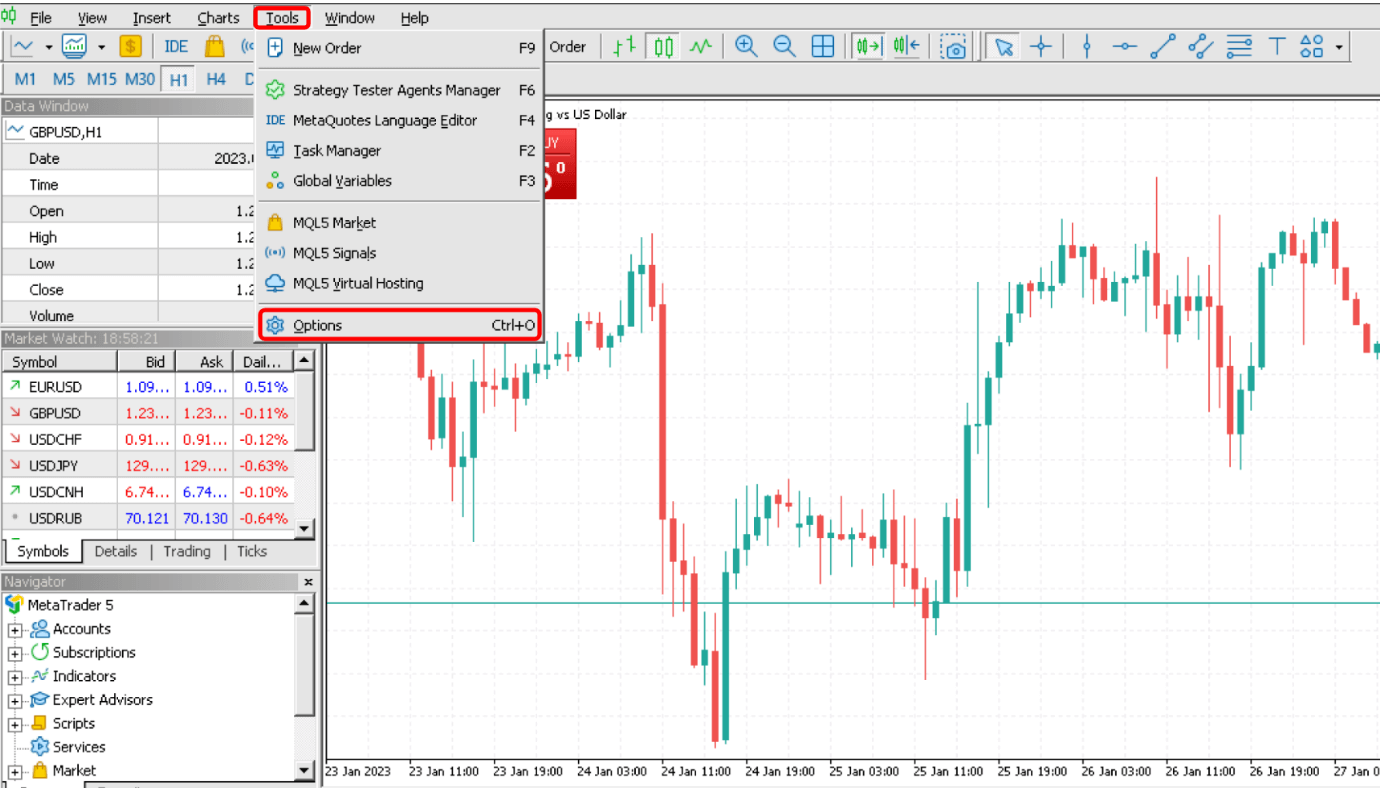
MT4 has two fields. Max bars in chart controls how many bars are displayed, and Max bars in history controls how many are kept on disk.
The MT4 chart settings page states that at the closing of a chart the amount of bars saved will not exceed the history value. So the pruning is not immediate. You set the ceiling once, and each chart trims itself the next time you close it.
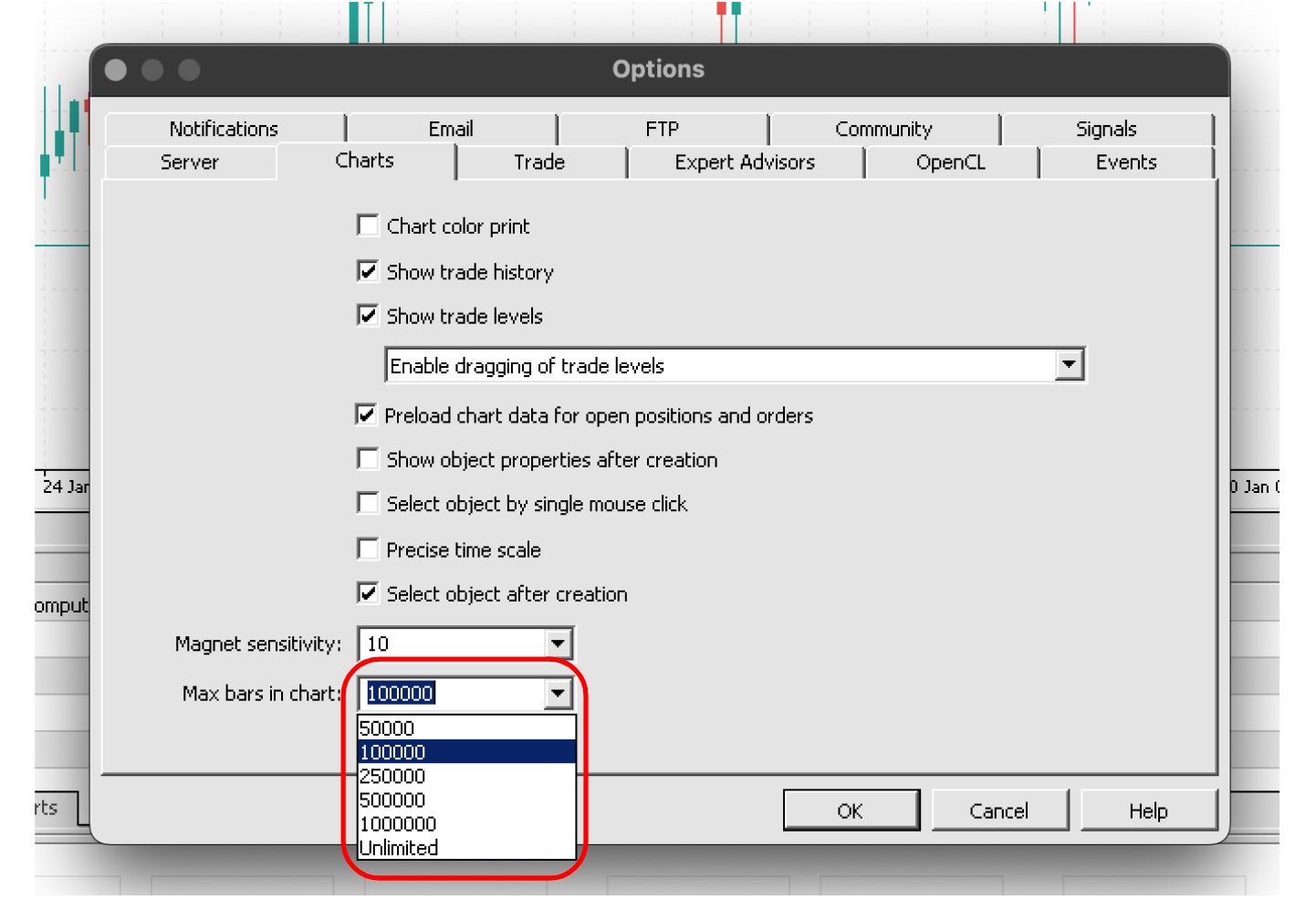
MT5 has one field. Max bars in chart sets the display limit, with a documented minimum of 5,000, and MetaQuotes notes that the platform must be restarted for a change to take effect. There is no MT5 equivalent of Max bars in history, so no setting caps what MT5 keeps on disk.
That asymmetry is why the two platforms need different maintenance. In MT4 you set a ceiling once and stop thinking about it. In MT5 you control what gets pulled down, and anything already stored stays stored until you delete it yourself.
The dropdown starts at 50,000 and runs to Unlimited, and you can type a lower figure down to the 5,000 minimum. Fifty thousand is a reasonable place to start, then lower it if the terminal is still slow and raise it if an indicator runs short of data.
One caveat is easy to miss and it changes what you should expect. MetaQuotes states that indicators can access more bars than Max bars in chart specifies, for more efficient calculation.
So the setting is a display limit rather than a hard ceiling on indicator work. It usually helps, and it is not guaranteed to. If lowering it makes no difference, the cost is somewhere else.
When Clearing Anything Will Not Help
Sometimes the platform is slow and none of this fixes it, and it is worth recognising that before you delete your chart layouts hoping for a different outcome.
A common cause is calculation rather than storage. An indicator that performs heavy work on every bar stays slow on a clean install, because the cost is in the arithmetic it repeats rather than in the files it reads.
The tell is that the slowdown follows the indicator. Remove it from the chart and the platform recovers immediately, and no amount of clearing changes anything while it is attached.
The fastest diagnosis costs nothing. Open a fresh chart with no indicators on it. If that chart is responsive while your working chart is not, the problem is something you attached, and the fix is to reduce its history requirement or remove it.
Running several dozen charts, or several terminals at once, produces the same result for the same reason. Each one holds its own data and does its own work.
How to Reset MT5 to Default Settings
There is no reset button, and deleting folders by hand is not the only route. MetaQuotes documents a cleaner one that almost nobody mentions.
Run the platform’s uninstaller and tick Delete user personal data. That option removes the instrument history, mail, MQL5 applications and platform settings together, and MetaQuotes is explicit that recovery afterwards is impossible. Reinstall and you get a genuinely fresh terminal.
The same page explains why reinstalling normally changes nothing. If that option is left unticked, the platform can be restored with all its settings and information simply by installing it into the same directory again.
Your data folder was never removed. That is documented behaviour, and it is why “I reinstalled and it was exactly the same” is such a common experience.
If a full reset is more than you need, work by layer instead.
- Reset the charts only: delete
MQL5\Profiles. You get default layouts back and lose your saved templates and chart setups. Logins, settings and price history are untouched. - Reset the settings as well: delete Config too. The terminal recreates its configuration from scratch, so note your login and server name first, because
accounts.datandservers.datgo with it. - Keep your tools either way: copy the MQL5 or MQL4 folder somewhere safe before any of this. Your indicators and EAs live there, and reinstalling them is the one genuinely tedious part.
Clearing the Cache on a Mac
MetaTrader on macOS is a Windows build running inside a Wine environment that MetaQuotes packages and installs for you. That matters here for one reason: the files are not where a Mac user would expect them.
The MetaTrader 5 macOS installation page documents the data folder inside the Wine prefix, at ~/Library/Application Support/net.metaquotes.wine.metatrader5/drive_c/Program Files/MetaTrader 5. MT4 uses its own separately named prefix.
You still do not need to type that. File, then Open Data Folder works from inside MetaTrader on a Mac exactly as it does on Windows, and it lands in the right prefix for the copy you are running. Use it, and everything above applies unchanged.
Two pieces of advice circulate for Mac users that are worth ignoring. One is to delete ~/Library/Application Support/MetaQuotes, which is not the documented location for a current MT5 install. The other is to remove paths under ~/cache or ~/caches, which is not where macOS puts caches.
Neither clears a modern MetaTrader install. Running a recursive delete with elevated privileges against a guessed path in your home folder is a poor trade for the disk space involved.
What to Decide Before You Delete Anything
There is no technical reason to purge MetaTrader history twice a month, every few weeks, or on any other schedule. Clear something when you are solving a problem, and work out which problem you have first, because the three lead in different directions.
If you want closed trades off your screen, filter the History tab and accept that the record stays. If you want the platform faster, set the bar limits and test a bare chart before you delete anything. If you want disk space back, start with Tester and tick data, and stay away from MQL5\Profiles until you have copied it.
The habit worth building is not a monthly cache clear. It is opening the data folder once, while nothing is wrong, and learning what each folder is before someone on a forum tells you to delete it.
Browse all Keenbase MT4 and MT5 products
About this article
Published by Keenbase Trading. We have been trading since 2018 and we build MT4 and MT5 indicators, Expert Advisors, free tools and custom development, so the platform behaviour described here is what we work with every day.
MetaTrader’s menus and folder layout change between builds, so check what is actually on your own terminal before deleting anything on the strength of a guide.